


PDF Viewer: Read, Scan & Edit
4.49.00 Reviews
App Specs
- Version
- 1.1.1
- Updated On
- License
- Free
- Downloads
- 100,000+
- Developer
- OCEAN FEATHER TECHNOLOGY INC
- Categories
- Productivity
- Platform
- Android
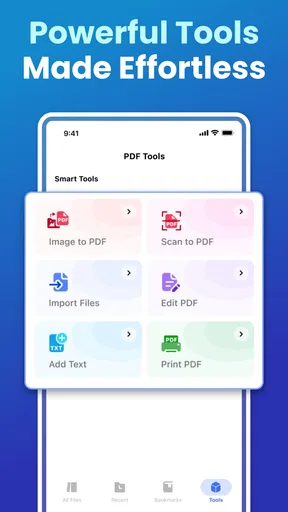
Screenshots
 Analysis by AppCompare
I started using PDF Viewer: Read, Scan & Edit because I wanted a simple way to open documents on an Android phone without turning every reading task into a full office project. In everyday use, it fits best as a practical productivity app for viewing and processing PDFs, especially when a document arrives through a message, sits in local storage, or needs a quick check away from a computer.
My first impression was straightforward rather than flashy. The app’s purpose is clear: open a PDF, inspect its pages, and handle common document tasks from a mobile device. That focus is useful in a household where one Android phone or tablet may be used by several people for different reasons. One person might need to read a school handout, another may want to check a form, and someone else may simply need to look at a manual. The application does not need to become the center of the device to be useful.
It is a free app from OCEAN FEATHER TECHNOLOGY INC, listed for Everyone and available on Android devices running version 8.0 or later. Its current version is 1.1.1, and the app has reached over one hundred thousand installs with a 4.4 average from roughly one hundred eighty ratings. Those figures suggest that it has found a modest audience, while still leaving room for me to judge it by the actual reading experience rather than by popularity alone.
How it works in a shared household
A realistic example is a family preparing for a trip. One person receives a booking document, another has a rental agreement to inspect, and a child needs to read a permission form. A dedicated PDF viewer keeps these jobs separate from email and messaging apps. I can open the document, read it on the larger screen of a tablet, and return to the original conversation afterward instead of searching through a crowded office suite.
This kind of use also highlights the app’s main strength: it is easier to approach when the goal is reading first. A full document editor can be helpful when I need to build a report, manage spreadsheets, or collaborate on files, but it often brings extra menus and a broader workflow. Here, the narrower purpose feels more suitable for a quick household task. I would choose it when someone asks, “Can you open this PDF?” rather than when they ask me to redesign the document.
The shared-device angle requires a little common sense. A PDF viewer is not automatically a family filing system. If several people open documents on the same phone, I would keep personal files organized in clearly named folders and close documents after use. That simple habit matters more than installing another utility. It reduces the chance that the next person picks up the phone and sees a document that was meant for someone else.
I also found that a large-screen Android tablet makes the app more comfortable for group reading than a small phone. A parent can review a school notice with a child, or two people can examine a form together without constantly zooming and passing the device back and forth. On a phone, it remains useful for checking a page quickly, but long documents are naturally more tiring because the display limits how much text fits at once.
Worth Reading Before You Choose

EA SPORTS FC Mobile 26 Is a Bigger Football Game, but It Takes Time

Flipboard Shows What News Apps Must Do Beyond the Feed

Switching to Android Auto Means Rethinking Your Driving Routine

Google Calendar Makes a Crowded Week Easier to Manage

Ludo King Makes the Most of the Minutes Between Plans

Baby Panda World Brings Quick Play to Modern Phones, but Its Game Library Feels Busy
Keeping setup simple without blurring personal boundaries
Because the app is free and has an Everyone age rating, it is easy to consider for a shared Android device. Still, an age rating should not be confused with a complete household privacy solution. It describes suitability in broad terms; it does not replace separate user profiles, file organization, or supervision. If the device is used by children and adults, I would treat the app as a neutral document tool and manage sensitive material at the device or storage level.
Before handing over a shared tablet, I would prepare a small folder structure. A folder for school documents, another for household paperwork, and a temporary folder for files that can be deleted later is enough for many homes. This approach makes the viewer easier to use because the important work happens before opening the app: the right files are named clearly and stored where everyone can find them.
There is a practical trade-off here. A specialized viewer keeps the reading task focused, but it may not solve every part of document management. If I need scanning, cloud organization, signatures, conversion, and team editing in one continuous workflow, I would compare it with a broader document platform. That alternative may be less tidy for simple reading but more convenient for a person who handles paperwork professionally every day.
For a household, I would also avoid treating the app as a place to store everything permanently. Important tax forms, medical paperwork, identity documents, and contracts deserve a deliberate storage plan and, where appropriate, protected device access. The app can be the tool I use to view or process such files, but responsibility for the documents still belongs to the person managing the phone or tablet.
Reading and processing documents together
The most useful workflow is often a short one. I receive a PDF, open it in the viewer, inspect the pages, and decide what needs to happen next. If it is only a reference document, I read it and close it. If it requires attention, I process it while the details are fresh. This is more efficient than opening a heavyweight office application for every attachment.
That distinction is important because “processing” can mean different things to different users. For me, it means handling the document on the device rather than merely seeing a preview. For someone else, it might mean scanning or editing. I would recommend testing the exact task that matters most before making the app the household’s only document tool. A viewer can be excellent for reading while still being a weaker choice for advanced editing or formal paperwork.
One useful habit is to inspect a document before sharing it onward. A PDF may contain several pages, blank pages, or information that was not intended for the recipient. Reviewing it in a dedicated viewer gives me a moment to catch those issues. In a family setting, that is especially helpful when one person downloads a document for another and needs to confirm that it is the correct file.
Another small but valuable workflow is to separate “read now” documents from “keep” documents. Temporary notices, menus, event sheets, and instruction pages can be dealt with and removed later. Long-term records should be renamed and stored deliberately. This prevents the app from becoming a confusing pile of files and makes it easier for the next household member to find what they need.
I would also use the phone for short checks and the tablet for longer reading. That is not a special feature of the application, but it changes how comfortable the experience feels. A document viewer is only as convenient as the screen, battery, and file organization around it. On a small display, zooming can interrupt the flow of reading; on a larger display, the same document can feel much closer to a printed page.
Coordination when several people rely on one device
Shared use works best when everyone agrees on a simple routine. I would name files with the person, topic, and date when those details are useful, then place them in a predictable folder. That makes a bigger difference than repeatedly searching through recent files. It also helps children learn where school documents belong without giving them access to unrelated household paperwork.
For a family trip, one person could collect travel documents in a single folder while another checks each file in the viewer. The app becomes a common inspection point rather than a private archive. If a page is unclear, the family can discuss it immediately. If a document needs action, the person responsible can move it to a separate task folder instead of leaving it mixed with finished material.
This is where the app compares favorably with using a browser alone. A browser may open a PDF quickly, but the document can feel tied to a tab, a message, or a temporary download. A dedicated viewer gives the task a clearer boundary. On the other hand, browser-based viewing can be preferable when I am already working inside a web service and do not want another app involved. The better choice depends on whether the document is a one-time glance or part of an organized local workflow.
Compared with a full office suite, the advantage is concentration. I am less likely to wander into unrelated editing tools when I only need to read a form. The disadvantage is breadth: an office suite may handle text documents, spreadsheets, presentations, and collaborative storage more naturally. I would choose this app for PDF-centered household use, not as a replacement for every productivity application on the device.
Compared with a dedicated scanning application, its role is different. A scanning tool is usually the better starting point when the original document is on paper and the main job is capturing it. PDF Viewer: Read, Scan & Edit makes more sense after a document already exists digitally or when I need to inspect and process a PDF on Android. Keeping those roles clear prevents disappointment.
Age, trust, and the limits of a shared tool
The Everyone rating makes the app approachable for a broad household audience, including situations where a parent helps a child read a document. I would still explain which files are appropriate to open and which should remain private. A child may be perfectly capable of reading a worksheet in the viewer while not being ready to handle a parent’s financial or medical paperwork.
Trust also involves the source of the file. I would not open an unexpected PDF simply because the viewer can display it. A document received from an unknown sender deserves the same caution as any other attachment. The app’s job is to show and process documents; it should not replace ordinary judgment about where a file came from or whether it is safe to share.
For older relatives, the main challenge may be navigation rather than the document itself. I would set up a clear folder, enlarge the device display when possible, and leave only the documents they need for the immediate task. A short explanation—where files are found, how to return to the list, and which documents can be deleted—can make the app much less intimidating.
For teenagers, the app can be useful for school PDFs, application forms, reading assignments, and reference material. I like that the basic purpose is easy to explain. However, teenagers who need to annotate extensively, collaborate with classmates, or convert files regularly may be better served by a more specialized study or office tool. The viewer is a sensible part of that workflow, but not necessarily the whole workflow.
Who should choose it and who should look elsewhere
I would recommend this app to someone who wants a focused Android utility for opening and handling PDFs without committing to a large productivity suite. It is particularly suitable for occasional readers, households with a shared tablet, students checking documents on the move, and anyone who receives forms or instructions by phone.
I would be more cautious about recommending it as the main tool for a professional who processes documents continuously. Heavy users may need a carefully integrated system for signatures, collaboration, cloud storage, version history, and advanced editing. In that situation, a broader platform may justify its extra complexity because it keeps more of the work in one place.
I would also skip it if my main need were paper scanning, advanced markup, or document collaboration. Those tasks call for tools designed around them. The app’s appeal comes from its directness, so asking it to replace a scanner, office suite, and shared drive would weaken the very simplicity that makes it attractive.
My household verdict
After using it as a straightforward PDF utility, I see PDF Viewer: Read, Scan & Edit as a practical choice for homes that need reliable document access without a complicated setup. Its free price removes the usual hesitation around trying a focused viewer, and its Android compatibility makes it easy to consider for an existing phone or tablet.
My strongest recommendation is to pair it with sensible file habits. Keep personal documents separated, use clear names, review files before sharing them, and decide in advance which documents are temporary. Those steps make the app feel more useful and protect the boundaries that matter on a shared device.
The honest limitation is that a focused PDF tool cannot be expected to replace every document service. It works best when reading and basic processing are the center of the task. When the household needs complex editing, collaboration, or a complete archive, I would choose a broader alternative and use this app only where its simpler approach is an advantage.
For everyday PDF reading on Android, though, I would gladly keep it available. It is easy to understand, suitable for a broad age range, and well matched to the ordinary moments when a document needs attention now rather than a full workstation later. For shared-device households, its value comes from keeping PDF work clear, local, and easy to coordinate.
Pros
- Opens PDFs quickly
- even when switching between several documents.
- Built-in scanning turns paper pages into shareable PDF files.
- Search tools make it easy to find words or phrases in long documents.
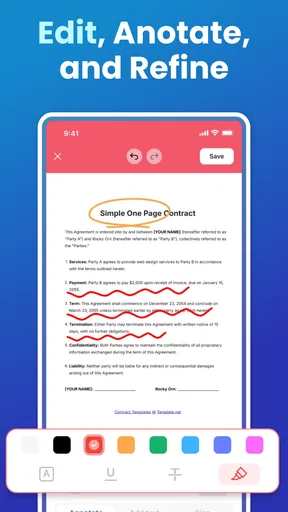
- Supports annotations for highlighting
- drawing
- and adding notes.
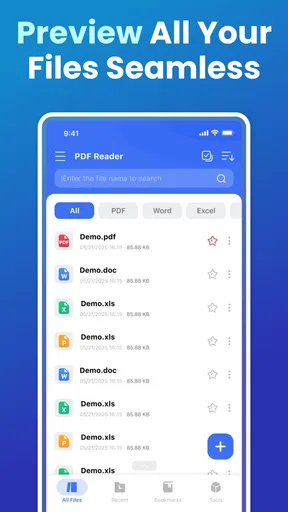
- Useful file organization helps keep recent and imported documents together.
Cons
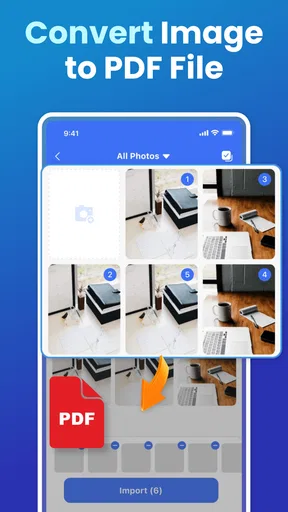
- Some editing and conversion tools may require a premium subscription.
- OCR accuracy can vary with blurry images
- unusual fonts
- or poor lighting.
- Large scanned documents may take noticeable storage space on the device.
- Advertising may interrupt the experience for users on the free plan.
- Advanced features can feel less intuitive until you learn the interface.
FAQs for PDF Viewer: Read, Scan & Edit
What is PDF Viewer: Read, Scan & Edit used for?
PDF Viewer: Read, Scan & Edit is designed to help you manage PDF documents from a mobile device. You can open and read files, scan physical pages, organize documents, and make basic edits or annotations. It can be useful for students, office workers, and anyone who needs to review paperwork without relying on a computer.
Can I scan documents and save them as PDF files?
Yes, the app generally uses your device camera to capture documents and convert them into digital files, making it easier to store receipts, notes, forms, and other paperwork. Before scanning, make sure the page is well lit and positioned on a flat surface. Depending on the version, automatic edge detection, image enhancement, and multi-page scanning may also be available.
Does PDF Viewer: Read, Scan & Edit work offline?
Many basic functions, such as opening locally stored PDFs, reading documents, and performing some annotations, can usually be used without an internet connection. However, features involving cloud storage, online sharing, synchronization, advertisements, or optional processing services may require internet access. It is best to download or import important files before going offline.
What editing and annotation tools are available?
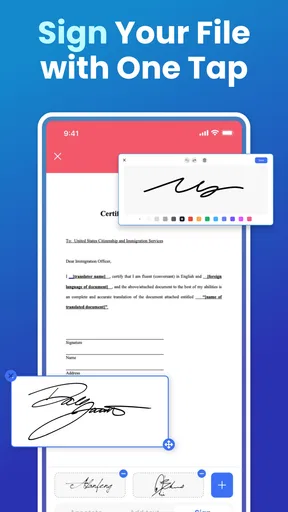
The app is mainly intended for practical PDF management rather than advanced desktop publishing. Depending on the installed version and subscription level, you may be able to highlight text, add notes, draw on pages, insert signatures, rotate or reorder pages, and fill certain forms. Users needing complex text replacement or professional document layout should check the available tools carefully.
Is PDF Viewer: Read, Scan & Edit free to download?
The application may be free to install, but some features can be restricted behind in-app purchases or a subscription. Premium limitations may apply to scanning, exporting, editing, cloud services, removing advertisements, or processing multiple pages. Before starting a trial, review the price, renewal terms, and cancellation instructions shown in the app store listing.


